This is mostly a post for my fellow synth heads and to have it published as a point of reference. If you are mostly interested in things Microsoft or modern, you can safely go back to doom scrolling on Linked Out, without reading any further!
I am also increasing my presentation examples of the complete claptrap generative slop tools push out, despite music theory being 50% mathematics and in this case the make up of DX parameters being entirely basic mathematics (8 bit) and (almost) fully documented on copyright free websites. Exactly the sorts of patterns “AI” should have by now learnt and that do not need to be embellished with bullshit content from Reddit. The problem being of course, is that the idiots creating “AI” really aren’t that familiar with actual computer science and definitely can’t count in HEX. It’s their loss, but it sure is a shame they persist in inflicting their sadness on the rest of us. I have a good example of this towards the end of the article.
At any rate, Note Limits (aka Key Limits) are a mechanism within Yamaha DX series synthesizers which allow in essence, splits. Meaning different parts of the keyboard play different voices. These parameters make up part of a DX Function. Functions in DX terminology are how various controllers (Pitch Bend, After Touch, Modulation etc) are sensitive to and respond to adjustments during performance. They also control Poly and Mono modes and Portamento and Glissando.
The DX7 has Function Parameters which change the global settings on the board (for every voice). There is no memory for storing or recalling these parameter sets.
The DX5 and DX1 have memory banks for Functions along with Performance parameters and memories which are combined with the voice(s) to allow recall of Functions on a per Performance basis. Enabling different Functions for different voices.
The TX7 and TF1 have it’s own Function Parameters and memory which are specific to each voice.
The TX7 also has a separate memory bank for a DX7 Function that can be applied to the DX7 when paired with one (making a DX7 a poor man’s DX5).
The good news is all of these share the same basic data format and for the most part, parameters. The TX and TF add Note Limit Low and Note Limit High. The bad news is the terms Function and Performance are frequently used interchangeably.
At any rate, editing / programming these two parameters (Note Limit Low and Note Limit High) is something that only one software tool can do, and it’s entirely (until now) undocumented.
Most modern software editors (DEXED, Ctrlr, PatchBase, etc) for DX basically ignore the Functions. And the ones that do allow them to be changed basically work the same as with the DX7 i.e. global. There is one exception. More on that later. Why is this an issue? Well the whole point of having patches recallable during a performance is to have ALL of the elements of the performance available. This includes, for example, bringing in strings with a foot controller whilst playing a piano, and so on. If a multi-timbral performance has say a drum kit spread across eight splits, it’s not much use when on recall those settings are not present! Now of course, you aren’t playing drums using splits but still an eight part multi-timbral performance is absolutely a thing. Just ask Dr. Fink.
You can, of course, program these parameters on the front panel of the synth. :) Yeah. Not happening. That’s for gear heads, not musicians.
Now, DX Function/Performance parameters are in SYSEX (MIDI) data format – just like DX voice parameters. It’s a relatively simple HEX schema, and very ingenious of the smart (real) programmers at Yamaha to drive not only the tone generators but also the operation of the panel and display etc. Now bulk data is a bit more complicated in terms of schema, but no big deal. All done when MIDI was brand new and they had 4KB to work with.
Thus, if you wish to set the mode to Mono, and the Portamento to Follow with a Portamento time of 50, you can send a simple SYSEX to the board, or do that via some fancy application which slides virtual faders and twiddles knobs into HEX. Lovely. You can also store that into a Function memory bank if that exists.
However the Note Limits are NOT parameters. They don’t exist in the Function/Parameter schema, and are not part of the body of the SYSEX message!
We can set the global Note Limits via SYSEX, but they apply to all voices. Useful, but not quite the Delectados you would like. On the TF1 we can set the Note Limits on the front panel and save the Function on a per voice basis. But the TF1 panel offers you a grand total of three buttons to perform that task and you need to do that for every voice on every module. So for the “factory” patches of the TX816 that’s 34 voices (out of 256 in total). Same deal with the TX7.
The TF1 ‘factory’ patches are on the ‘net, but whoever dumped them only dumped the voices, not the functions. Whoops.
That’s why 99% of all the doofuses on YouTube with a TX they paid too much for in this century are playing without the fundamental performance characteristics of the synth present and going “wow just hear the stack, like, epic, like, amazing” whilst not using a pedal or setting the pans on their mixer. :)
So, they can be stored, but they aren’t parameters. So where the hell are they? Well in typical sneaky trying to save on memory (ahh those were the days, when programmers cared about memory) fashion. They are in the name! :) Of course they are!
Check out this Function dump of a TF1 used on the Michael Jackson Bad World Tour 1988. The highlighted voice was performed by Don Boyette via a KX1. It SLAMMED. The bass, not the KX1, which was rarer than hens teeth, even in the 1980s. Not that it mattered during the show, but this patch was so slamming it almost covered up the sound of the techs cursing when they had to replace another TX816 PSU.
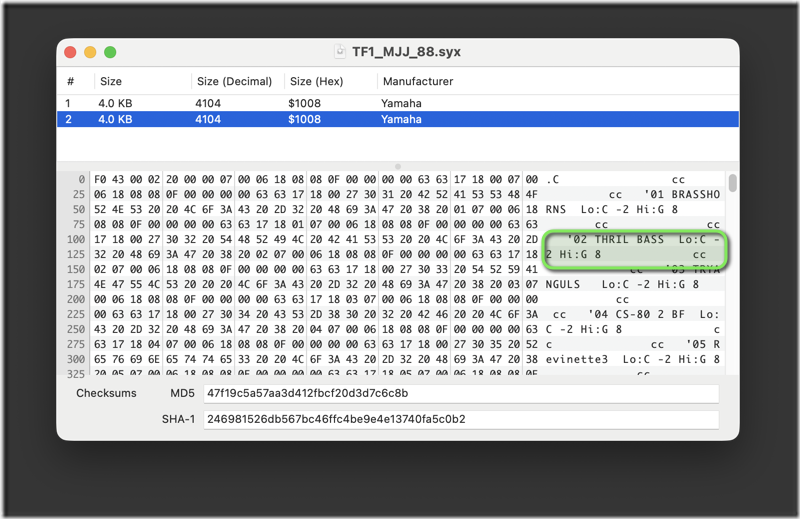
Couple of interesting things to note here. Firstly the Function memory is contained within the 2nd 4K block. The person who dumped this TF1 knew which buttons to press, even if I say so myself! This is a voice and function dump.
Second is the name of the Function memory, which matches the voice but then has additional text. This is why the patch names were constrained (something a lot of people had problems grokking back in the 80s). There is also a preceding character and the overall expected “string” is totally different to that of the matching voice.
But the really important part is what follows the name, in this case ‘Lo:C –2 Hi: G 8 ‘ – that’s actually the default (and probably the global) note limits for the TF1 module. It means the lowest note is MIDI note 0 (two octaves lower than C0) and the highest note is MIDI note 127 (G8). In practice this means the whole board plays the voice.
Note: Yamaha use C3 as middle C (261.63 Hz) on DX – MIDI note 60 – most use C4.
So by editing the name (correctly) the limits can be set on a per voice basis.
And for those following along, these settings are of course part of the SYSEX message, it’s just that they are not parameters and as such they are not documented.
This is the default ‘string’ for the E.PNO 13.2 voice:
13 E.PNO 13.2 Lo:C -2 Hi:G 8
Let’s say you want a Synth Drum voice, that is played only by the keys E3 and above, the settings would be Low: E3 High: G8.
Simples, right? Just enter those in the name. Well hold on there a second. The format is important. The string needs to be, exactly:
24 MBLOK 24.8 Lo:E 3 Hi:G 8
The function number, followed by the voice name, followed by the Lo and High with their respective values.
But (!) there are some spaces. between E and 3, G and 8, one at the very end. Two between the two values and one at the end. But the eagle eyed will note in this example there are two spaces between the two values, whereas in the default there is only one. It’s actually a trailing space of the low value for this example, to enable “X octaves lower/higher than” as in the default. It’s the same for the high value (the end space) that might be G -2. That one at the end, by the way is not displayed in the ‘code’ view – the view source button shows it.
The spaces are needed because they provide for the black keys. For example:
12 FLEXI 12.2 Lo:C#1 Hi:F#1
No spaces in the note – as that is used by a sharp. The trailing space is important as noted above – the ‘string’ needs to be 30 characters. Basically any valid combination adds up to 30.
11 FMPNO 11.2  Lo:C -2 Hi:G 8
03 P.ORG  3.2  Lo:C -2 Hi:G 8
12 FLEXI 12.2  Lo:C#1  Hi:F#1
24 MBLOK 24.8  Lo:E 3  Hi:G 8
13 E.PNO 13.2  Lo:C -2 Hi:G 8
If you don’t follow the format perfectly, the settings won’t work.
Now, of course, you can’t send that as is, it needs to be in HEX, but you know that’s trivial and you’re just gonna use a SYSEX tool or library for that stuff.
Don’t get me started on ranges 0~99 and 0~15. I used to use that as programming test for new starters. I’d LOVE to see how CS graduates would approach that these days! :)
It’s curious that no editors fully support this – at least not intentionally. Some modern editors do allow setting the parameters of the DX7 – but do not include the note limits, or only allow them set globally. A lot of modern DX editors completely ignore the functions entirely. Methinks they don’t really play music, just fiddle with gear, not that there is anything wrong with that per se.
I went back and checked out the Atari ST editor – or rather a port of it – it only handles the global note limits (which are parameters in the formal specification). I didn’t bother with any of the Java stuff, there are limits to how much utter crap I will install on a box!
The TX7 editor in SoundDiver (excellent software shit canned by Apple when they acquired Logic – boo Apple, you SUCK!) – same deal in the supplied TX ‘adaptation’. There is a community adaptation specifically for the TF1 and that also cannot set the note limits without editing the name. This seemingly stalled around a decade ago development actually tells the user in the interface NOT to edit, because it “doesn’t work”. I can’t actually get this ‘adaptation’ to function reliably with my TF1s anyway. The paid for MidiQuest (which is turdtastic in general) only supports the globals.
As part of the development of my Teensy based DX programmer, I had already built a library to translate from ‘human’ to ‘DX sysex’, which in effect is just a giant dimensional array. So I extended that to include the “name” as an experiment and knocked up a quick and dirty UI in PowerShell – works great.
It would be trivial to build a proper UI to wrap this, allow for entry of note values range constrained, then concat the correct string and send back to the synth, thus avoiding any PBKAC error. But there is a wrinkle, the name must be saved and then the Function set retrieved before the parameters can be edited. You cannot do it a single operation. The only time a single operation is allowed, is when you send the entire bank (32) – i.e. a SYSEX dump of all function memories TO the synth.
Alas as of today, the only software that does this, on a per Function Memory basis, is DX Manager, by editing precisely the string in the Performance combo box and saving it (by reselecting it) – you have to save the name before altering the parameters. This doesn’t appear to be intended functionality. But it does work. The combo box by the way does not allow you to see your cursor!
_thumb.png "2026-01-24 03_58_16-TX7 Performance Editor - editing downloaded data (Performances 10.tmp)")
Now for the “AI” part.
I “prompt engineered” Claude (“trained to be safe, accurate, and secure”) with information on where the correct SYSEX MIDI Data Format tables exist (copyright free) and which MCP to use for handling them. I specified the totality of potential options for the name and the format masks. I also provided it my look up dictionary, and a UI definition. Remember the output as it were, is all HEX.
And yes, it made a total mess of it. It horlicks it up the gazoo, and back. The only thing it could do without barfing slop was the UI. It created a program that will attempt to save corrupt SYSEX to the synth and light up the panel error LEDs.
What did it stuff up? Well it couldn’t handle the parameter SYSEX properly – it created results that included dozens of errors, including some that were invalid HEX! 0G is not HEX. LOL. All that computing power and yet…. well I guess we don’t need clean water after all.
Why did it make this most epic fail? Because it decided the digital data provided and the instructions to generate HEX weren’t as useful as the stuff on the MCP. It didn’t use convert where it should have done. It also appears that the MCP messed up the OCR (the scans of the MIDI Data Format tables). Further it provided no validation (maybe my mistake for not specifying such a basic concept). It made code just like what 1990s web sites used to do – hey man, that input data is all good, we’ll just pass it straight into the SQL query, what could possibly go wrong?! :)
So I went back and asked it do a smaller task, by providing a portion of the MIDI Data Format tables in digital form. I did two, one with a deliberate mistake, and one without. I gave explicit instructions to validate and ensure all output was valid HEX. That worked. So to make it even in any way feasible that “AI” could assist here I need to type the entire data format again, by which time I could have coded it myself. Oh wait, I done got busy doing that already – it’s the damn dictionary. The one I gave my ‘intelligent’ assistant in the first place.
And the name thing, yeah it couldn’t grok it, despite the note lookup table provided. Another thing it barfed slop on was not understanding repetition symbols in the documentation. That one is excusable, but disappointing nonetheless.
Naturally, I could (in theory) solve all of these problems by providing it with a dump of the ROM. That is also known as copyright theft and I am not up for that. There’s a reason the Yamaha Montage costs what it does. That’s people’s intellectual property, and it’s also their healthcare, mortgages and pensions.
I asked it to do something so trivial if I want to I can write out the conversion with pencil on paper. Without the internet. And yet. Slop. Pure slop.
Obviously, I already knew it would produce slop. But I was quite surprised by how bad it was. All this “let it do the heavy lifting and have an expert review the output“ bullshit we are being sold by the Technology Industrial Complex can’t do what Yamaha did in 4KB in 1982. And is a irresponsible waste of resources for zero tangible benefit. I guess it’s not made for people who can code, but more for those who want to throw ‘ideas’ at a wall.
We should go back to teaching people how computers actually work. But we won’t… there’s too many memes to make.
Back before things ‘moved on’ Microsoft invested quite heavily in self contained scenario based documentation. They didn’t always get it right, but that was generally how things were approached. Now, with Microsoft Learn the approach seems to be extremely feature specific articles that both explain concepts and provide sample scripts or API documentation. This totally makes sense given the fast paced change and the even faster introduction of new capabilities. Microsoft Learn in general is an exceptional resource. And it totally makes sense for those creating the documentation. The problems start when trying to get stuff done, and following the trail of breadcrumbs to come up with a concise and repeatable work item.
The very nature of the extensive Microsoft cloud platform means that most things of any significant merit involve many different component parts, all managed using different APIs, PowerShell Modules and often with overlapping configuration across multiple ‘products’. For things to work, all the configuration needs to be present and correct, and in many cases done in the right order. A perfect scenario for a playbook (again) and decent RBAC based operational service management discipline.
A great example of this is configuring everything necessary to support Microsoft Purview Sensitivity Labels for Containers. Containers being Microsoft Teams Teams, SharePoint Sites and Office 365 Groups. Oh, and Loop Workspaces – :) – yeah, me neither.

A great feature, but one that can’t be configured in Purview, without some prerequisites in place within your Entra, and Exchange Online first. We will see it greyed out with a link to the documentation I’m moaning about:
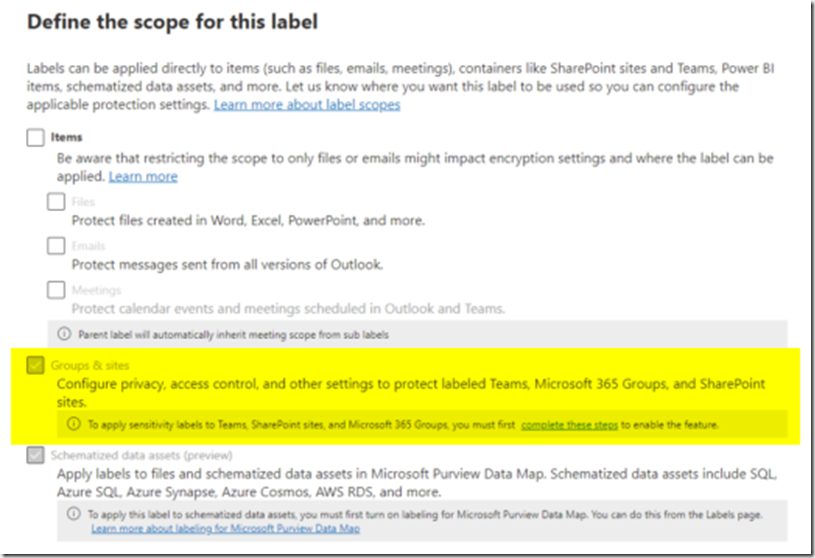
None of this is particularly difficult or new and experienced administrators know it well. But I’ve been asked about it six times in the last three months. It’s of course something that most people will only do once (per tenant) and then forget about.
It’s also a lot easier to quickly describe the steps to someone who knows what the difference between AD PowerShell and Graph is, that they exist, and the difference between REST and RPS – all assuming they even grok managing things with the console in the first place. There are a LOT of administrators out there that live in the portals!
The Microsoft Learn documentation covers all of this. However it does so by means of five (yes five) different web pages. There is no “process” to follow, it’s up to you to figure out the relevant parts of each, whilst also dealing with a bunch of open browser tabs. Also two of the pages contain overlapping/contradictory information, and one of them contains incorrect, out of date information regarding a deprecated API.
How wonderful, if only someone in the community would put together a walkthrough (and not as an interminably annoying YouTube video, no I don’t want to click like and subscribe). Funnily enough, that’s exactly what Antonio Maio did back in 2023. Antonio is the man. Except that was 2023. Things have changed (not in terms of concepts or what’s happening, but in terms of the APIs etc).
This is the nature of the beast with cloud, and a significant challenge for content authors (to keep things up to date, but also to explain the old and new ways).
At any rate, I thought I’d put together the current sequence of things in a rational format – correct as of August 2025. I will attempt to keep this up to date, if and when things change. Works in PoSh ‘proper’ and Azure Cloud Shell.
The first step is to install/import a few modules that we will need:
Install-Module Microsoft.Graph -Scope CurrentUser
Install-Module Microsoft.Graph.Beta -Scope CurrentUser
Import-Module ExchangeOnlineManagement
Then we connect to Graph (you will be prompted to authenticate either via a browser pop up or a device code if using Cloud Shell).
Connect-MgGraph -Scopes "Directory.ReadWrite.All"

Then grab our Unified Groups directory settings, querying it for the EnableMIPLabels property.
$grpSetting = Get-MgBetaDirectorySetting | Where-Object { $_.Values.Name -eq "EnableMIPLabels" }
$grpSetting.Values
If this returns nothing, then we need to create and set that property.
$TemplateId = (Get-MgBetaDirectorySettingTemplate | where { $_.DisplayName -eq "Group.Unified" }).Id
$params = @{
	templateId = "$TemplateId"
	values = @(
	@{
		name = "EnableMIPLabels"
		value = "True"
	}
	)
}

New-MgBetaDirectorySetting -BodyParameter $params
We can query this has worked by getting it again:
$grpSetting = Get-MgBetaDirectorySetting | where { $_.DisplayName -eq "Group.Unified"}
$grpSetting.Values
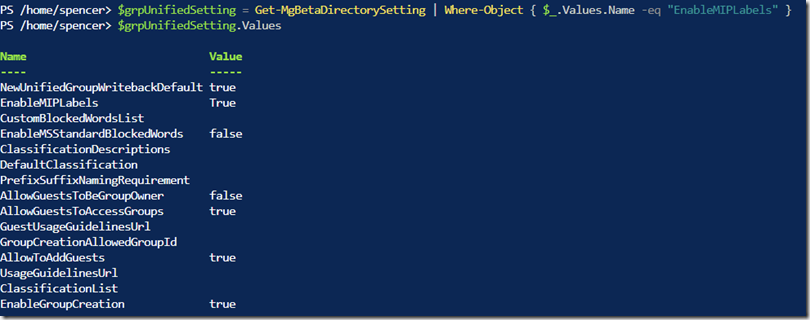
Then we need to connect to Exchange Online using the Security and Compliance PowerShell module. This is the one that Microsoft documents incorrectly due to the deprecation of RPS. The cmdlet is the same, the parameters are not.
Connect-IPPSSession
Note: this works only for commercial tenants – other tenant types require additional parameters
Then we can sync the labels between Purview and the Directory/Exchange:
Execute-AzureAdLabelSync
Now we can go back to Information Protection in the Purview Admin portal and get busy making labels and publishing their associated policies.
It’s also important to note that for all this to work – that is for the labels to actually show up – we must have the Azure Information Protection service up and running in our tenant. That requires another PowerShell module and command:
Install-Module -Name AIPService
Enable-AipService
After publication of the labels, they will show up in your Teams etc. Note it may take up to 24 hours for everything to be fully happy. In my experience for small environments it’s more like a couple hours. But in large environments 24 hours is a reality.
Have fun with sensitivity labels!
Connecting an USB-C iPad to a Yamaha digital piano is simple… As long as you ignore everything Yamaha tell you in it's Smart Device Connection Manual. :)
TL;DR: Forget/ditch the Apple Multiport Adaptors and use a USB-C Hub.
There are three key elements that are needed for a "all in one" solution:
• Data (MIDI to/from the instrument)
• Audio (iPad audio is played back thru the speakers of the instrument)
• Power (to charge the iPad).
Strictly speaking power is optional, but in reality if the iPad lives on the music rest, then it's a requirement.
With the first two, you can leverage Yamaha's own Smart Pianist app - the functionality of which varies depending on the instrument series you use (P, Arius, CLP, CVP, CSP). And a multitude of virtual instruments, instructional apps, sheet music apps, MIDI apps and so on. If you are using a real computer, then obviously DAWs, Main Stage etc are also in play.
Ironically the flagship instrument has the least Smart Pianist capability but then again it's mostly onboard the instrument. Honestly, Smart Pianist isn't that great unless you have the CSP series or P-515. It's the 3rd Party apps that are really useful. I use forScore, Symphony Pro and Spectrasonics Keyscape the most.
One thing to note, with some CLP and older Arius models, you may need to update the firmware to enable the instrument as a Audio Interface (play audio back from the iPad via the instrument speakers). Often a store will sell you a instrument without the latest firmware. An CLP-725 will have from the factory no functioning audio interface until you run the firmware update. One time in the Netherlands, the piano store staff didn't know the capability existed, and we had to return with my cable set and iPad to test it in store, at which point the sales dude was like, "hey, that's great, never knew it could do that". It worked on an YDP-164 but not the CLP-725.
One can attempt to use Wireless LAN adaptors, and Bluetooth adaptors, but they are all suboptimal and mixing two connections will lead to lag, latency and audio breakup. If the instrument doesn't have on board Audio and Data (MIDI) wireless or Bluetooth support, I wouldn't bother.
Most instruments still only offer the ability to connect a Bluetooth device to the instrument in order to play it's audio via the instrument speakers. Big whoop!! Bluetooth does not always mean Bluetooth MIDI support. Yamaha are slow in this respect, but it's also worth noting that Bluetooth MIDI is terrible for professional applications. At any rate, don't buy an instrument based on it's Bluetooth support, and the key phrase should be "Bluetooth audio and MIDI".
So all good. A cable you say! Easy.
Except if you also want to power the iPad. Which is a pretty reasonable requirement. Lest the thing runs out of power during a gig. :)
In the past, when iPads used Lightning connectors things were far more straightforward.
This is clearly still the target and fully tested scenario by the vendor and the most used by customers. This makes total sense as for ages the iPad used Lightning, and Lightning is a good connector despite what the EU may legislate!
There's a reason the Smart Device Connection Manual gets put in a separate downloadable PDF rather than the instrument's instruction manual, and the Smart Pianist application is updated immediately after you install it from the AppStore. You will find older versions of the manual that don’t even mention USB-C and none of the diagrams show a power lead connected! I’m pretty sure they never tested these scenarios with power and certainly not with power cycles.
At any rate, you'd hook up a Apple Camera Connection kit which basically has power pass thru and a USB-A port. Into that USB-A port you connect a USB-A to USB-B lead (aka printer cable) and the USB-B end goes into the USB to Host port on the instrument. USB-B being the industry standard for USB MIDI. All good. A reliable connection that survives power cycles of the instrument and the iPad. If you don't want the fugly Apple connector and it's two cables on the music rest then a simple Lightning extension cable takes care of that.
This scenario (with the exception of the extension cable) is detailed in the Smart Device Connection Manual. In the latest version, it says to use a USB-C Digital AV Multiport Adapter or USB-C VGA Multiport Adapter. Older versions include a note saying replace Camera Connection kit with a Multiport Adaptor.
And this is where things start to go downhill.
These Apple adaptors do work, but they will almost always cause problems, especially on the CLP and CVP instruments. Once you get it working it likely will not continue to work when you power cycle the instrument. Or it may work three times, but not the fourth. It gets even worse if you wish to hide the adaptor by using a USB-C extension cable. It needs to be the correct extension cable (at least 10Gbps) and it matters which way around the connection is made at the USB-C end (because USB-A is directional) It is not a reliable connection, and therefore it is not a connection.
The simplest solution for Data and Audio is to connect a straight USB-C to USB-B cable from the iPad to the Instrument. This works GREAT. But there's no power.
For power as well, we must use a USB-C Hub, that has both a Power Delivery port (for the incoming power) and a USB-A or C port for the cable to the instrument. Usually they have other ports as well (HDMI, etc). Most of these on the market also have a very short cable, so a USB-C extension (capable of power delivery) is also needed to hide all this gubbins.
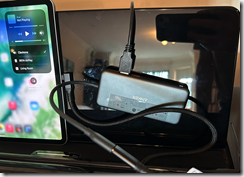

And YES, it does matter which way around the two USB-C connectors connect!! This is the Hub's male plug to the extension cable's female socket. This is because the "legacy device" - the USB-A end of the instrument is directional. Don't try to rationalise it, just know that it's how it is! :) if the connection doesn't work at first, turn the USB-C connector around. I gaff up the side of the connectors so I know which way they need to connect in the future.
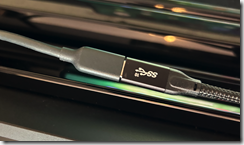
To recap what's needed:
- a USB-C hub which supports power delivery, and includes at least one USB-A port and an incoming power USB-C port.
- (optional) a high quality, 10Gbps or higher power delivery capable USB-C extension cable. 2m is a good length to gaff down the back of the instrument legs into some power apparatus concealment (which is where the hub also goes)
- a USB-C power source and cable
- a USB-B to USB-A cable (USB to Host MIDI) aka a printer cable. You can also use a USB-B to USB-C here
- The USB-C cable goes from the power source into the Power Delivery port on the hub.
- The USB-B cable goes from the instrument's USB to Host port to a USB-A (or C) port on the hub.
- The hub's built in USB-C lead goes into the USB-C extension lead.
- The other end of the extension lead connects to the iPad.
Rinse and repeat for connection to a computer such as a MacBook or Mac Mini, although of course with these, they can be powered via another port, so the use of the Apple Digital Multiport adaptor is viable. One can even hook up a USB switch at the "legacy" end of the chain (the USB-B port of the instrument) to switch between the iPad and computer. However if you are in for this sort of thing, you are much better off with a professional MIDI switch solution. Aside anything else, you know you'll be adding another five instruments soon enough! :)
Hopefully in the future, the instrument vendors will:
- Update and correct their documentation.
Although they are right to be cautious because at present there is no such thing as a "certified USB-C extension" and they have enough trouble making lists of supported video adaptors, doing so for USB-C hubs would be very risky. Nonetheless they should at least accommodate the requirement to have power at the same time as data and audio.
- Improve support for current "standards" - and implement alternative USB to Host ports alongside USB-B. Basically put USB-C into the instruments.
- Make it standard to include proper Bluetooth and wireless on board for those that wish to go cable free. The bandwidth is there, it's merely the implementations that suck.
- A step change in instrument connectivity all up.
Nobody wants this box of tricks with fragile connectors that have little resilience and need gaffered to a brick. The one thing (only thing :)) all sound engineers agree on is adaptors and shitty computer connectors are turdtastic. We need proper robust connectors - there is a reason USB used a DIN socket. But we won't get them so this bullet is just a fantasy!
- A general industry move away from printing logos on connectors :)
For reference, the specific cables and hub I'm using are:
- Anker USB C Hub, 341 USB-C Hub (7-in-1) with 4K HDMI, 100W Power Delivery, USB-C and 2 USB-A 5 Gbps Data Ports, microSD and SD Card Reader
- Ruxely Right Angle USB C Extension Cable 2M,90 Degree Type C 3.1 Gen2 10Gbps Female to Male Extender Cord,4K 60Hz L-Shaped USBC Thunderbolt 3
- Apple 20W USB-C Power Adapter and USB-C Charge Cable (that came with the 2022 iPad Pro)
Testing and validation using the following:
- iPad Pro (circa 2018) with Lightning port
- 2022 iPad Pro with USB-C
- 2009 MacBook with USB-C
- 2022 MacBook with USB-C
- Mac Mini
- Dell Precision 7530
- Yamaha P-515
- Yamaha Arius YDP-164
- Yamaha Clavinova CLP-745
- Yamaha Clavinova CVP-809
.
Quite some time ago I posted about the SharePoint “stubs” – a PowerShell module that allows for remote authoring with intellisense within your favourite PowerShell editor (i.e. VS Code!) on a machine that does not have the SharePoint bits installed. This was put together by the SharePointDSC folks ostensibly to help them with unit testing, but it’s much wider use was around being able to create scripts properly and easily on a remote machine.
Well, now the OfficeDSC project has done the same thing creating a gargantuan “stub” for the cmdlets available in the following services and frameworks:
- AzureAD
- MSOnline
- ExchangeOnline
- SharePointOnline
- PnP
- Teams
- SkypeForBusiness
- SecurityAndCompliance
- PowerApps
This is seriously awesome!
Head on over to github and download the module from https://github.com/microsoft/Office365DSC/blob/Dev/Tests/Unit/Stubs/Office365.psm1. Then of course, you simply Import-Module on that sucker and you are golden for some nice and simple remote authoring without any need for bits and bobs and toolchains and disaster on a nice clean dev machine! Yay! Of course you can add this to your profile by editing the file located at $profile.
If you are curious, they also published the utility that is used to create the stubs. This is somewhat important, as unlike SharePoint which will change once every three years (if we are lucky) Office 365 updates and additions will be much more frequent.
These peeps rock! And this is a must have. Check it out!
s.
Here’s a quick update on the issue that occurred during my recent Azure AD and SharePoint sessions at SharePoint Saturday Lisbon and ESPC.
For those interested, once I had configured the AAD Enterprise Application and created a Trusted Identity Provider in SharePoint to use it – and attempted a (seemingly successful) login via AAD the glorious Yellow Page of Death was returned by the SharePoint Web Application.
It was, perhaps obviously, a basic error – albeit one that is not *that* obvious, especially when you are brutalised by a head cold and a very dodgy furry podium! :) After booting the machines and going thru the motions to reproduce the error with a clean configuration, the event log held the answer…
After the AAD login process, everyone’s third favourite ASP.NET event is logged – 1309. Useless in it’s own right, but the inner exception bubbles up is a “specified argument was out of the range of valid values” – from CreateSessionSecurityToken. Experience (mostly with legacy ADFS) told me straight away to check the system clock – and yes – the time is out by one hour. One hour ahead of the actual time. Thus the expected behaviour. It doesn’t work. Good! It’s not supposed to. it would be a pretty shitty authentication mechanism if time wasn’t part of the token!!
Alas, the SharePoint error is as much use as a fart in a spacesuit – but hey, this *is* SharePoint we are talking about – and as referenced in the presentation – there are no changes in the core of AuthN/Z within the On-premises product.
So, a rookie error – but it seems after a recent VMWare update the time sync had been disabled. As soon as I fixed the time and reattempted a login as Miles Davis, everything works, and I was taken back to the default Sharing/Request Access UX.
Simple. It always is. Totally my fault. But i’m blaming all the silly time zone madness I’ve had to accommodate over the last six months!
s.
Patrick was my friend.
He was more a personal friend than a professional acquaintance, not to say he didn’t influence me professionally. There is no one in the SharePoint-verse who does not owe a debt of gratitude to Patrick. These days, now the community has grown so large around the world, and in some ways has become overly narcissistic it’s easy to overlook how it all begun, with the selfless and kind contributions of a small band of people. Patrick “Profke” Tisseghem was foremost among them. He was also a first rate engineer and teacher – a rare breed indeed. Most importantly, he was wickedly funny and always kind.
Ten years since he passed way too soon, the folks at the Belgian Information Worker User Group, of which he was a founding father, and some of his friends put together a touching tribute at the SharePoint Saturday Belgium event in Brussels. With their permission, you can check it out. Apologies in advance for the amateur camerawork.
Thank you, Patrick.
[update] if you use OneDrive to store your Documents – the default on a new install of Windows 10 - you must ensure the WindowsPowerShell folder exists and is set to be “always on this device”.
Ahh, SharePoint. Ahh, SnapIns. Yeah. 2009 faxed and before the ink faded, told us the old crap is hanging around like a bad hangover. I hate SnapIns more than most, but that’s a story for another day. For the time being we are stuck with them when working with our “built from the cloud up” versions of SharePoint Server.
One of the more esoteric problems with SnapIns is a total lack of portability. In many situations you want to author scripts without being on a virtual machine that has SharePoint installed. In these days of “modern” we are mostly doing this in Visual Studio code to take advantage of the reasonably nice PowerShell authoring experience and of course the integration with GitHub and so on. Plus, fancy colours.
Thus, how can we get some additional help when authoring? What we need is a “mock” or a “stub” of the SharePoint cmdlets so we can get intellisense.
Thanks to the nice chaps who made the SharePoint DSC resources, we can do this easily by grabbing the stub they made (as a Module) and adding it to our PowerShell Profile. We used to do a similar thing back in the day by adding the SnapIn to the PoSh Profile to avoid having to load it when opening up ISE.
First thing to do is grab the stub(s). They are included in the SharePointDsc project on GitHub. However, there is no need to grab the whole thing – you can just get the SharePoint 2016 version from here. There is also a SharePoint 2013 version here. Save that bad boy on your machine someplace sensible. I put it in my _ScriptLibrary folder which lives in my OneDrive. Note there is also a stub for Distributed Cache which lives here.
Now you have the stub we can add it to our PowerShell profile. Open up VSCode and make sure you are in a PowerShell session. Go to the Terminal and type $profile. This will display your current profile file location.
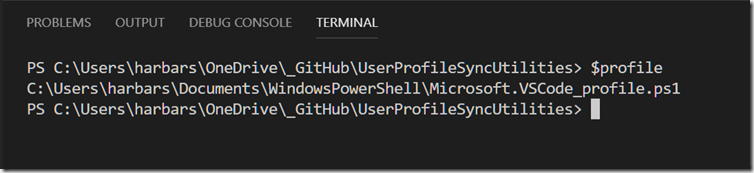
By default that file doesn’t exist yet so the simplest way to create it is to type notepad $profile, which will open up Notepad and prompt you to create it.
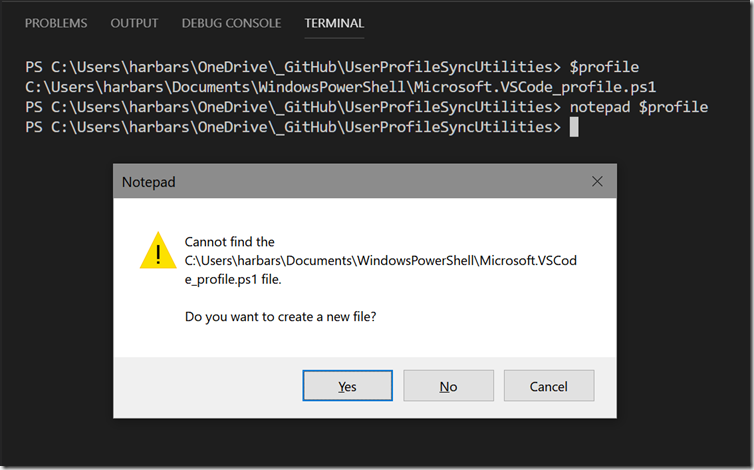
Then simply Import the module using the path to the stub file, my profile looks like this:
# SharePoint 2016 Stub
Import-Module "C:\Users\harbars\OneDrive\_Script Library\Microsoft.SharePoint.PowerShell.psm1"
Save that file and close Notepad. The next time you open a VSCode PowerShell session the module will be imported and you will see a lovely warning about the made up verbs the SharePoint development team thought would be OK back in 2008! Chortles.
But never mind that (for the time being) we now have intellisense for the SharePoint cmdlets.
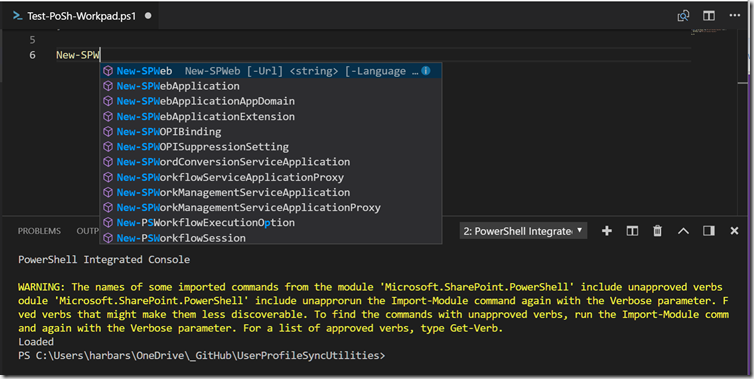
I actually tweak the profile a little so the warning is removed, and I add a message to say the Stub was loaded.
# SharePoint 2016 Stub
Import-Module "C:\Users\harbars\OneDrive\_Script Library\Microsoft.SharePoint.PowerShell.psm1"
Clear-Host
Write-Output "SharePoint Stub Loaded"
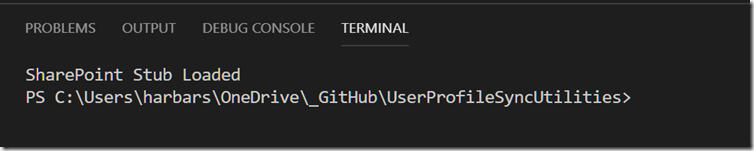
Just a simple trick to get the SharePoint cmdlets on a machine without SharePoint installed. Enjoy. And don’t go making up any verbs! :)
s.
 Many thanks to everyone who attended the European Collaboration Summit in Mainz, Germany, last month. It’s safe to say that the event overall was a runaway success and yes, we have already started planning for the 2019 edition!
At the event, I promised to publish some additional resources. These are a little later than I had hoped but with a new job and a variety of “more important” things on a rather large to-do list, the delay was inevitable. At any rate, this post serves as a landing page for these resources.
Tutorial Attendees: SharePoint 2016 Automation Toolkit
For those who attended the Infrastructure PowerClass hosted by Thomas Vochten and I, the scripts we showed and discussed for building out the On Premises portions of the Hybrid Labs are over here on GitHub. This toolkit has been used to build thousands of customer farms and has also been used at other pre/post conference events such as Microsoft Ignite. More details and so on can be found in the readme. I am not offering support for this toolkit. I will answer questions on it if they are easy to deal with quickly. But I will not be engaging in any debates about their worth, nor any religious arguments about DSC! :)
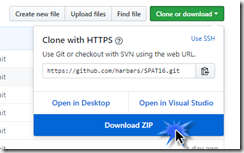
The 2013 version will be published over the next couple of weeks.
Don’t worry about GitHub if you are not familiar with it.
Within the page, there is the ability to download the files as a ZIP file – without having to do the whole “install some tools, clone, open” dance that the developers love so much! :)
Identity Manager & SharePoint Server Demos
During my session on User Profiles there wasn’t enough time to complete the demonstrations. As promised I’ve put together a 90 minute video of the complete demos, with some additional explanations and remarks. This is hosted over on YouTube. Apologies in advanced for the slightly annoying sound quality. I had, erm, a slight ‘accident’ with my mic stand earlier today that will mean a trip to the music store in the near future – drat! :)
Identity Manager & SharePoint Server Scripts
All of the scripts used within the above demos, and indeed at other conferences, are also available over here on GitHub.
I hope some of you find these resources useful and once again, thanks for helping make #CollabSummit 2018 the single best community technology event on the planet!
I’m outta here like I dropped a couple tables in a production database!
s.
Every so often a real blast from the past comes back to haunt me. Usually it’s some obscure “infrastructure” gubbins – you know, the sort of thing that 80% of so called IT Pros knew in 1999. These days thou. Not so much.
With SharePoint in particular there is a whole boat load of legacy. Not that legacy is bad. Lot’s of it is awesome. That’s why the product remains so successful. On the other hand some of it is real, real, real nasty! :)
It always seems to come in waves. Over the last two weeks I’ve had six emails regarding problems creating the first server in a SharePoint Farm. The ye olde “An error occurred while getting information about the user SPFarm at server fabrikam.com: The RPC server is unavailable”.
Naturally, there are a whole bunch of wild goose chases out there on the interwebz about how to potentially resolve this issue. Most of them are complete claptrap. Or even worse, a ‘support bot’ automated answer, something like “are you running as an administrator?” :)
Now this old chestnut can have a multitude of root causes and the API that raises this exception isn’t very clever about that – it just bubbles it back up the stack. As you might imagine, when SharePoint was first developed nobody was sat there running through all the various deployment scenarios and fire testing every code path to ensure a nice neat experience for the next 20+ years. But more importantly 17-18 years ago, idempotent, designed to be managed via automation and state independence were not so much of a thing as they are now. Let’s say we do it via PowerShell using New-SPConfigurationDatabase. That isn’t doing one thing. It’s doing a WHOLE BUNCH of things. All masked via the Server Side OM. The same is true if we use the Configuration Wizard. After all, they are both simply masks or wrappers for the OM.
The real problem with this error (and others like it), when creating a Farm, is that it only partly fails. The Configuration database is created on the SQL Server. It’s sitting there pretty happy. Indeed, it will have 711 Objects. New-SPConfigurationDatabase has sorta kinda worked. Even though it’s raised an exception. But it’s not really worked, and as soon as we go to the next stage of farm creation (typically Initialize-SPResourceSecurity) that will fail as well, with the error “Cannot perform security configuration because the configuration database does not exist. You must create or join to a configuration database before doing security configuration.”
Interesting. Most people will actually check if the Farm exists after New-SPConfigurationDatabase by calling Get-SPFarm. This is mainly because the very first “build a farm using PowerShell” posts included this. However, in this case – it is entirely worthless. because Get-SPFarm will report the farm exists and that it is Online.
The sample script that virtually everyone has been following since SharePoint 2010 is entirely flawed. There is zero point in calling Get-SPFarm at this point. If New-SPConfigurationDatabase works it appears to be a nice little bit of defensive coding. And it does actually deal with some other errors that can occur. But it won’t help in the case of bubbled up exceptions from dependencies.
What we ACTUALLY should be doing here is restarting the PowerShell session entirely. Indeed if you try and do anything which would otherwise be sensible, like removing and adding the Snap In – it will likely crash the process anyway. Indeed. if you just leave it sitting there for a bit, the process will crash all on it’s own. How do you like those apples?
This is an absolutely critical thing to realise about the Administration OM and the PowerShell that wraps it. This is why delivering true desired state configuration for SharePoint is currently impossible. The only way to catch this is to catch it. Neither the OM nor the PowerShell cmdlets are designed or developed to be leveraged in an automation first approach. Doesn’t mean we can’t get pretty close, but as soon as you start delving into the details, it becomes obvious just how much work is required to do all the things the back end OM doesn’t. And how exactly does one create a DSC resource that can detect a failed process, know exactly when it failed, and kick off another one to carry on? Yeah, exactly.
Again, SharePoint itself doesn’t handle the exception it just bubbles it back. It does no clean up. Our box is shafted. So to speak. Until we delete the database, and of course restart (or create a new) PowerShell session. Thus, in order to deal with this properly, we’d need to catch the specific exception and handle it appropriately. Do some remoting and kill the database (using SQL Server PowerShell), then restart our session. In other words clean up after the mess that SharePoint has made for us.
But of course we also need to fix the root cause of the problem before retrying.
“The RPC server is unavailable” is one of the classic, generic, “we have no idea what happened, throw this” errors. Now we live in a modern, transformed, cloud first world, we only have one generic error, “access denied” :). But back in the day, when type was understood, we had lots of them.
Sometimes the RPC server really is unavailable. But when creating a SharePoint Farm there is a 98% chance your machine has multiple Network Interfaces, and the prioritised (default) NIC cannot route to the SQL Server. It looks like this.
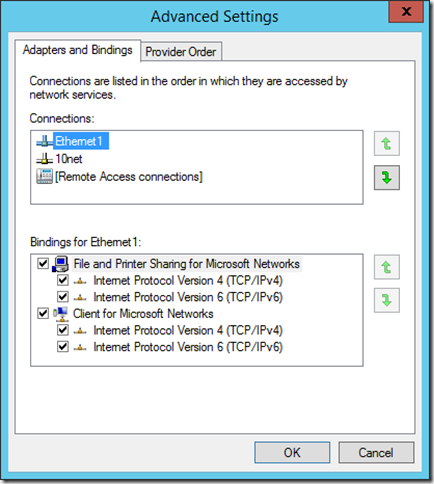
In this example “Ethernet1” is a shared network to a backup device. The customer is using this network to separate farm traffic from management traffic. Is that a good idea? Well that’s a post for another time (or perhaps not!) but the thing is it’s extremely common. Even in IaaS lots of people do this.
If I move the “10net” network to the top of the list. Hey presto. No more RPC server is unavailable. It’s a common gotcha. The trouble is most people don’t know there even IS a NIC order. Never mind where in the UI to configure it. For over a decade all but one causes of this error, where I’ve been involved either as escalation or hands on, has been the NIC order. It’s in my checklist before deploying farms – not that I really do that anymore, but whatever, that checklist doesn’t get updated much.
The good news is we can fix it with PowerShell, decent PowerShell….
Set-NetIPInterface -InterfaceIndex <index> -InterfaceMetric <new metric>
It of course shouldn’t be this way – the reason it is – is because the SharePoint APIs (especially the core Farm Admin ones) rely on some real legacy. In this case, what old timers refer to as the NetDOM stack. That’s an in joke related to an old utility used to hack AD things, back before there was a RTM AD and Microsoft were still doing NetBIOS. Now, it works. But that is the depth of a product like this. A rabbit’s warren of more or less every API made by Microsoft from around 1996 through to today. It would take a brave (and quite possibly barking mad) person indeed to make the decision to re-architect and re-implement the core admin stack.
Anyway the point of this post was to:
- document the 98% case cause and resolution (fix the NIC order, even if only temporarily whilst the farm is built) so I don’t have to actually explain it ever again (I hope!)
- provide a worked example of the importance of understanding how things are actually built, rather than merely the mask of veneer that so many products have today.
Not to be all Donald Rumsfeld, but remember with most things in life, and especially SharePoint - The more you know, the more you know you don’t know. You know?! :)
s.
The building block of every community is a family. Welcome to our family.
See you in Mainz!
Ahh, Distributed Cache, everybody’s favourite SharePoint service instance, the most reliable and trouble-free implementation since User Profile Synchronization. I jest of course, it’s the most temperamental element of the current shipping release, not to mention the most ridiculous false dependency ever introduced into the product and should be killed as soon as possible. However, it is extremely important to a SharePoint Farm in terms of both functionality and ensuring maximum performance. Even in simple deployments the impact of the Search and LogonToken related caches can provide ~20% performance and throughput improvements.
But what to do when it’s busted? Once Distributed Cache gets out of whack all bets are off and you are best throwing away the cache cluster and starting again, cleanly. This procedure has been documented by yours truly in the past. But it doesn’t help if no matter how many times you follow this procedure to the letter the service doesn’t stay up. Your Cache Hosts report “DOWN” or “UNKOWN”, and the Windows Service is either stopped, or faults immediately after starting.
This occurs often in misconfigured VMWare environments (vSphere and ESX). And it’s all down to the relationship between the guest configuration and the AppFabric configuration. As you hopefully know, SharePoint server is not supported with Dynamic Memory. Dynamic Memory is Microsoft speak for dynamically adjusting the RAM allocated to a guest. In VMWare this is actually the default configuration. The system estimates the working set for a guest based on memory usage history. Whilst the common statement is that dynamic memory will cause “issues with Distributed Cache” it’s a bit more serious than this in the real world.
Generally speaking Guest VMs are provisioned by an infrastructure team responsible for the VM platform, and in almost all cases, the request to reserve all memory will either be not understood or ignored. This leads to the VM being configured with the defaults. If you are in control of setting up the guests then life is easy, you just ensure that the “Reserve all guest memory (All locked)” option is selected with the guest properties BEFORE you even install the SharePoint bits.
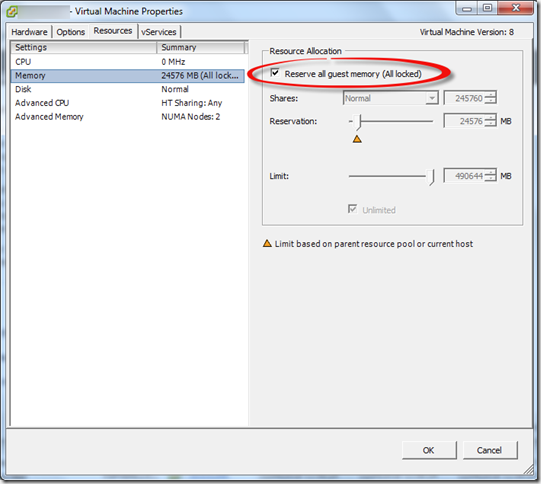
However, if you are in a situation where this was not configured originally and on that guest a SharePoint server is added to the farm and is running Distributed Cache things will go south quickly leading to a broken Distributed Cache. Even if you go back and select the option later, it’s hosed. The last machine which joins the cache cluster basically takes over. Just like with changing the service account – which resets cache size. The last one wins. Or in this case, totally hoses your farm.
One of the reasons the Distributed Cache and Dynamic Memory don’t get along, aside complete ignorance is that the Cache Cluster Configuration is not modified based on the memory resource management scheme in place (AppFabric includes this support, but it’s not exposed via the SharePoint configuration set).
The default Cache Partition Count varies for different memory resource management schemes. So, once we change that, we need to alter this configuration. If we install fresh on a new guest correctly configured it’s set automatically.
In this situation we need to deal with it ourselves, and as always there is zero (until now) documentation on this issue. This info has been used to support hundreds of customers via CSS cases over the last few years (I don’t know why it hasn’t been published properly).
Here’s the fix:
1. You need a Cache Cluster – it doesn’t need to be working (!) but if you’ve deleted all the service instances and so on, you need to bring back a broken Distributed Cache first.
2. Use the following PowerShell to export the Cache Config to a file on disk
Use-CacheCluster
Export-CacheClusterConfig c:\distCacheConfig.xml
3. Edit the XML file so that the partitionCount is 32:
<caches partitionCount="32">
4. Save the XML file
5. Use the following PowerShell to ensure the Cache Cluster is stopped and import the modified configuration, and then Start the Cache Cluster (this time it will actually start!)
Stop-CacheCluster
# should report all hosts down

Import-CacheClusterConfig C:\distCacheConfig.xml
Start-CacheCluster
6. Once you’ve done this you can use the standard tooling to report on the cluster or use my PowerShell module, each host in the cluster will report “UP” and you can interrogate the individual caches to verify they are being populated. You will of course need to modify your cache size if you have changed it previously, or wish to. Do it now before it starts being used!
Happy days!
s.
In a previous post I showed Using Nikon Wireless Utility with the Nikon D500 on iOS to download NEFs to iOS which worked for a while. However Nikon made some significant updates to SnapBridge – making it actually much better in terms of connection ease and reliability and remote photography. It’s still not much of a bridge to your snaps thou – it still restricts you to the silly 2Mb file and it only transfers JPEGs which means you need to be shooting them. Rubbish. These updates also break the procedure detailed previously.
I fiddled around with qDslrDashboard – but alas this is not available in the UK iOS Store. And even on a Windows PC I could not get the machine to connect to the D500 or D850 wireless.
It turns out it’s so much easier now – still using WMU. BUT you need two devices. So a hoop jump, but here’s the updated procedure.
- Pair your camera with SnapBridge on device one (I'm using an iPhone) as normal.
- Click Remote Photography or Download Pictures – it doesn’t matter, as long as you do something to initiate the Wireless connection on the camera. Click OK to enable the camera Wi-Fi, and wait whilst it’s started. When the Join screen appears, do NOT click Join.
Note the Wi-Fi Network name, which will be the camera model_serial number, e.g. D850_6666666
Leave device one on this screen.
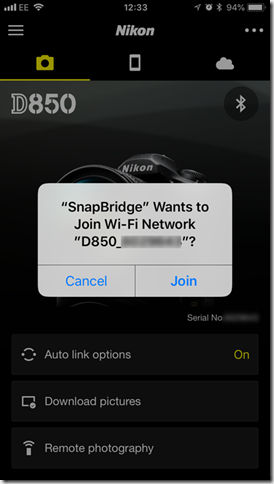
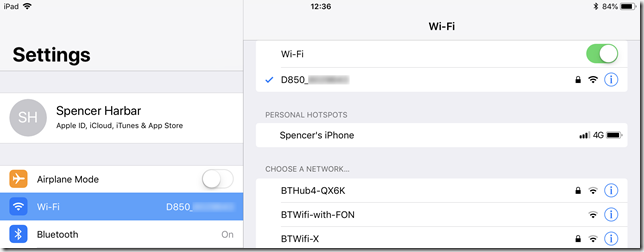
- On device two (I’m using an iPad Pro) connect to the camera Wi-Fi using the regular iOS Settings. The password you can view from the camera menus. It will be NIKONDXXX, where XXX is your camera model. You only need to enter this the first time you connect.
- Once connected, open up WMU, click View Photos – Pictures on Camera – then you can browse, select and download images from the camera cards.
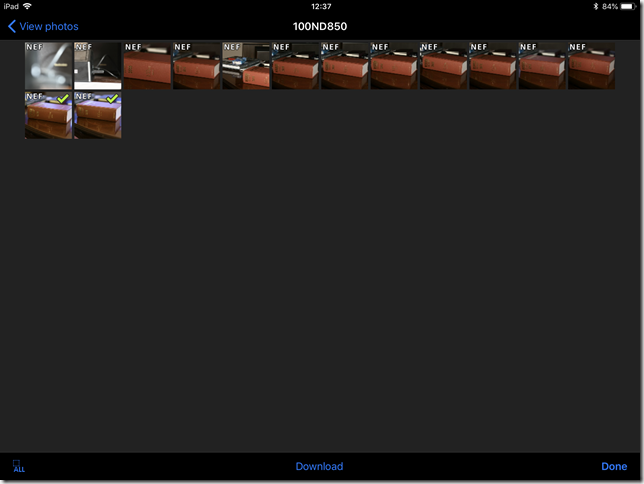
And of course these are now available on your device two for editing in Lightroom mobile or whatever. Happy days!
Remember to charge your batteries!!!!  and have a spare one or three in your pocket. Especially with the D850 these are some BIG ASS NEFs!
s.
One of the most common requests I have received over the last couple years has been how to leverage PowerShell to get User Photos from Active Directory (or any other location really) into the SharePoint User Profile Store. With the removal of User Profile Synchronization (UPS) in SharePoint 2016 this need has increased significantly. For most mid market customers this is a key requirement, and implementing Microsoft Identity Manager (MIM) for this purpose is not practical.
I did spend a whole bunch of time before the release of SharePoint 2016 attempting to convince the powers that be, that Active Directory Import (ADI) should include this capability to ease the upgrade pain and so forth. Alas, the goal was to remove UPS, not address the gaps left by it’s removal.
At any rate, if the business requirements can be met by ADI, with the exception of User Photos, then MIM is absolutely NOT the right solution. From an architectural perspective, a operational management perspective, and most importantly a cost perspective, it’s just daft. Thus I have always suggested that for this requirement a simple PowerShell script, regularly scheduled is the appropriate approach.
Now in essence such a script is simple. We iterate Active Directory, get the photos from thumbnailPhoto, then put them in the Profile Pictures folder within the My Site host. Depending upon operational requirements we can enhance this basic capability with logging and caching of the images on the file system and so forth.
Active Directory provides us with two key APIs for this work. We can use the basic APIs exposed nicely thru the ActiveDirectory PowerShell module, or we can use DirSync. DirSync is more complicated, but vastly preferable as it provides a change log as well as much more efficient operations generally. It’s actually how ADI works under the covers (another reason why it’s farcical from a technical perspective why ADI doesn't include this capability). So there’s nothing to install on the box, whereas with the AD PowerShell we have to install the RSAT tools and import the module which is generally not done on a SharePoint server. We do however require Replicating Directory Changes in order to make use of the change log – use the very same account you use to perform ADI and you’re all set.
But then we come to SharePoint! : ) As always it get’s more “interesting”….
Firstly, the “Profile Pictures” folder. That bad boy is not created until the very first profile photo is created. And it sits within the “User Photos” folder. i.e. https://mysitehost.fabrikam.com/User Photos/Profile Pictures. somebody, somewhere, somewhen thought this was clever. It is not. Anyway. no biggie. we need to accommodate checking it exists and if not, creating it.
Secondly the file name of the images, before they are “translated” into usable images by Update-SPProfilePhotoStore. This is a real problem because they include a “default partition ID”. There is no public API to discover this value. There is a way to get it but that involves calling a legacy web service which is unsupported (this is how Microsoft themselves do it in the MIM SharePoint Management Agent). The good news is that this GUID is the same on every SharePoint 2013/2016/2019 deployment. So we can just slap it in as variable and use it to splat the filename. But we need to be aware that this means the solution will only work with a non partitioned UPA. and of course there is a possibility this GUID may change in the future.
We also still need to run Update-SPProfilePhotoStore once the import is complete, to create the three thumbnails that SharePoint uses.
We also need to ensure that both the import script and Update-SPProfilePhotoStore are run on a machine hosting the User Profile Service service instance. The latter will not raise any exception if it is run elsewhere, it merely does nothing and quits!
With all this said in terms of brief explanation, the basic script from Adam Sorenson can be found over at https://gallery.technet.microsoft.com/SharePoint-User-Profile-928b39c0. You can update the initial variables to suit your environment. You will also need a “dummy” DNLookup.xml as described over at https://blogs.technet.microsoft.com/adamsorenson/2017/05/24/user-profile-picture-import-with-active-directory-import/.
Now yes, there are lots of things “wrong” with this script. Some are the fault of SharePoint as previously discussed, and others are more regarding operational management. But the point of posting is that this is a start point for which you can build out what you need. For example you may not wish to cache images on the file system (although for large environments that is a good idea). Further you would look to clean up the PowerShell and/or make it into a module and so on. Also watch out for the LDAP filter that’s used, this may not reflect your requirements. I would also remove the horrible legacy API for alternative credentials. Otherwise, this script is actually more or less identical to mine, except that I split out the gathering of photos to support Urls as well as Thumbnails, and I used the “private” API for the “partition ID” as I was looking for a way to encourage the powers that be to provide a public API (and needed a solution for Multi Tenant).
If there is enough interest I will publish my PowerShell Module but this script is all you need to get started…
s.
Introduction
For about a year now I’ve been plagued by people asking me how to configure a partitioned User Profile Application (UPA) in SharePoint Server 2016, and perform successful profile import using Active Directory Import (ADI). Every few weeks someone asks for the configuration, and it basically got to the point where it made sense to post this article to which I can refer folks.
Now, I am not going to provide all up coverage here. I expect you to be familiar with the fundamental concepts of SharePoint Multi-Tenancy. You can head over to my other articles here (2010), here (2013), and on TechNet for that information. All I am going to do in this article is outline the changes in the configuration of the UPA and ADI because of the removal of UPS from SharePoint 2016. I’ll also point out a couple of significant gotchas which are imperative to plan for.
Having said that, it would be remiss to not state categorically that multi-tenancy is absolutely NOT something most customers should be doing. Neither I, or Microsoft, recommend this deployment approach in any way whatsoever because virtually no one has the time, money or expertise to implement all of the things out with the SharePoint product which are necessary to be successful. Indeed, one of the most significant non-Microsoft deployments of multi-tenant SharePoint which used to exist, no longer does – mainly because that vendor decided it was not worth it. You’ve been warned.
What’s different about SharePoint 2016?
Only one thing basically, but it’s a significant element. As you will be aware User Profile Synchronization (UPS) is no longer part of SharePoint Server. In 2010 and 2013 UPS was used to perform profile synchronization with a partitioned UPA. This was the canonical and recommended deployment approach.
We set up a directory structure that looked something like this:
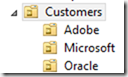
A “base” OU (in this case Customers) which included a OU per tenant. We then configured UPS to sync with the base OU, and it used the SiteSubscriptionProfileConfig to match up each tenant to the child OUs using a simple string match.
As UPS is no longer available, we must use Active Directory Import to perform synchronization. For a long time during pre-release versions of SharePoint 2016, it was not possible to configure this due to a bug. This lead to statements such as “sync with a partitioned UPA is not supported”. This was never the case, and it was simply a few bugs that were resolved with the RTM of the product.
On the face of it pretty simple. However, there is some “interesting” configuration required in order to get things working correctly, and also extremely important planning considerations around how you manage synchronization operations which were not present in previous versions.
What’s the same as previous versions?
Pretty much everything. Creating Site Subscriptions, their Tenant Administration sites and provisioning initial member sites is identical. We don’t need change our tenant provisioning scripts in this respect.
Just like previous versions we need to tell the UPA about these new Subscriptions as they are created. If we browse to a Tenant Administration site, and click the Manage User Profile Application link we will see the following error.
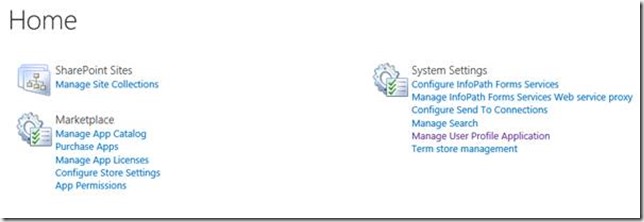
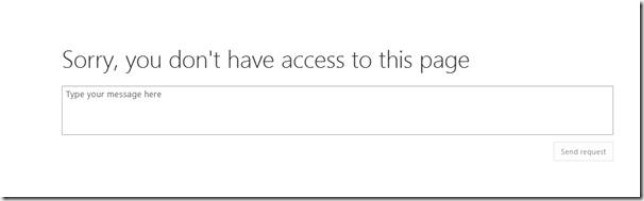
This is totally expected at this point, and is no different from SharePoint 2010 or 2013, except for the rendering of the “modern” access denied experience :). This is basically one of these generic “access denied” exceptions which bubbles up and causes this rather lame UI. What actually is the case at this stage is that the UPA has no Subscriptions (Tenants) and therefore it is impossible to display this page. If we look at the UPA, we can see there are no Subscriptions (Tenants in UPA terminology!) configured.
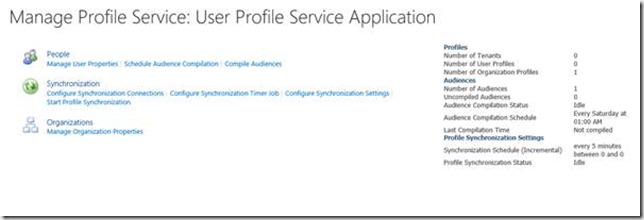
We add the new Subscription to the UPA in the exact same way we did with previous versions, using Add-SPSiteSubscriptionProfileConfig. It’s worth pointing out that prior to RTM of SharePoint Server 2016 there was a bug which prevented this command from succeeding. This was fixed for RTM. We pass in a
-SynchronizationOU which is a STRING not a DN. In a real deployment, we would also pass in the configuration for the MySites. For example:
# Add this subscription to the Partitioned UPA
$UpaProxyName = "User Profile Service Application Proxy"
$MemberSiteUrl = "https://oracle.fabrikam.com"
$TenantSyncOU = "Oracle"

$Sub = Get-SPSiteSubscription $MemberSiteUrl
$UpaProxy = Get-SPServiceApplicationProxy | Where-Object {$_.Name -eq $UpaProxyName}

Add-SPSiteSubscriptionProfileConfig -Identity $Sub -SynchronizationOU $TenantSyncOU `
                                -MySiteHostLocation "$MemberSiteUrl/my" `
                                -MySiteManagedPath "$MemberSiteUrl/my/personal/" `
                                -ProfileServiceApplicationProxy $UpaProxy
Once that is complete, we can see the Subscription (Tenant) has been added to the UPA:
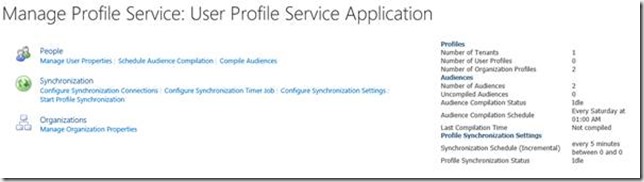
And if we go ahead and click Manage User Profile Application from Tenant Admin, we no longer see the request access screen and we can view the profiles and so forth as expected:
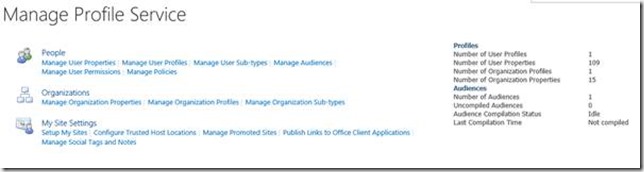
So now we have the Partitioned UPA configured, and added our Subscription to it. We would of course provision more than one subscription. Everything we have done up till now is identical to how it was done with SharePoint 2010 and 2013.
Configuring Synchronization Connections
Now we need to actually deal with getting profiles into these “partitions” of the UPA. In theory, we could use the Central Administration UI to add a new synchronization connection, hook that up to the Customers OU, then perform a sync. In theory. In practice, creating Synchronization Connections for a Partitioned UPA does not work, and is 100% unsupported.
If we try to configure using the UI and then go back and edit the connection, we will see that the changes are not persisted within the container selection. Yes, really. This is “by design”.
More importantly however, sync runs won’t work – with no profiles being imported to the UPA. We will see something similar to this in the ULS:
UserProfileADImportJob:ImportDC -- Regular DirSync scan: successes '0', failures '0', ignored '113', total duration '21', external time in Profile '0', external time in Directroy '16' (times in milliseconds)
Check out the spelling of “directroy” at the end of that trace log! :) Wicked!
In order to create our connections, we MUST use the currently undocumented online and rather esoteric Add-SPProfileSyncConnection PowerShell cmdlet. But it’s not that straightforward, as multi tenancy brings along a specific pattern to its usage.
Now, this cmdlet has a chequered history with a lot of problems. Some of those (such as the ability to exclude disabled accounts) have been fixed in SharePoint 2016. But it is important to note the behaviour of the cmdlet – which is counter to all PowerShell naming and best practices – will be confusing.
With UPS we used to add one container to the Sync connection, (e.g. Customers). With ADI we must add one container for each subscription we wish to sync. (e.g. Microsoft, Oracle, Amazon). We can NOT use a single container.
The PowerShell below creates an initial sync connection using the OU for one of the subscriptions.
$UpaName = "User Profile Service Application"
$ForestName = "fabrikam.com"
$DomainName = "FABRIKAM"
$AdImportUserName = "spupi"
$AdImportPassword = Read-Host "Please enter the password for the AD Import Account" -AsSecureString
$SyncOU = "OU=Microsoft,OU=Customers,DC=fabrikam,DC=com"

Add-SPProfileSyncConnection -ConnectionSynchronizationOU $SyncOU `
                            -ConnectionUseDisabledFilter $True `
                            -ProfileServiceApplication $Upa `
                            -ConnectionForestName $ForestName `
                            -ConnectionDomain $DomainName `
                            -ConnectionUserName $AdImportUserName `
                            -ConnectionPassword $AdImportPassword
Note that the -ConnectionSynchronizationOU is a DN. Note also that the -ConnectionUserName must not include DOMAIN\ - it’s merely the username itself. Don’t ask! It’s what it is.
Once we have done this we can go ahead and perform a Synchronization run and the profiles for the Microsoft subscription will be imported into the Microsoft partition of the UPA.
To add other subscriptions, we repeat the use of Add-SPProfileSyncConnection, once for each additional subscription. Whilst it’s called Add- what is actually happening here is the existing profile connection is being updated to include the additional containers.
$SyncOU = "OU=Oracle,OU=Customers,DC=fabrikam,DC=com"
Add-SPProfileSyncConnection -ConnectionSynchronizationOU $SyncOU `
                            -ConnectionUseDisabledFilter $True `
                            -ProfileServiceApplication $Upa `
                            -ConnectionForestName $ForestName `
                            -ConnectionDomain $DomainName `
                            -ConnectionUserName $AdImportUserName `
                            -ConnectionPassword $AdImportPassword

$SyncOU = "OU=Adobe,OU=Customers,DC=fabrikam,DC=com"
Add-SPProfileSyncConnection -ConnectionSynchronizationOU $SyncOU `
                            -ConnectionUseDisabledFilter $True `
                            -ProfileServiceApplication $Upa `
                            -ConnectionForestName $ForestName `
                            -ConnectionDomain $DomainName `
                            -ConnectionUserName $AdImportUserName `
                            -ConnectionPassword $AdImportPassword

$SyncOU = "OU=Amazon,OU=HR,OU=Customers,DC=fabrikam,DC=com"
Add-SPProfileSyncConnection -ConnectionSynchronizationOU $SyncOU `
                            -ConnectionUseDisabledFilter $True `
                            -ProfileServiceApplication $Upa `
                            -ConnectionForestName $ForestName `
                            -ConnectionDomain $DomainName `
                            -ConnectionUserName $AdImportUserName `
                            -ConnectionPassword $AdImportPassword
Now when we run another Full Import, all subscriptions will get the appropriate profiles imported.
At the end of the day, we get a number of Subscriptions (tenants) and a bunch of profiles in each:
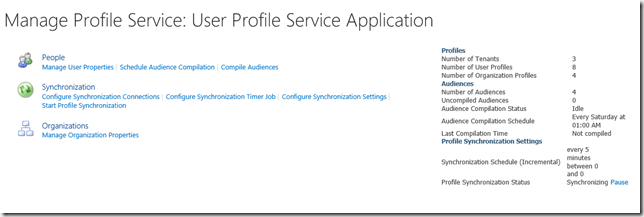
And that’s all there is to it…. Kind of… Sort of…
Implications
There are a couple of BIG considerations with this approach to be aware of. You will have to manage this stuff – or build tooling to manage it. If you get it wrong, then the wrong objects will be in the wrong tenants, and that’s not good.
Firstly, there is no way to easily manage the sync connection. You can’t use the UI to add/remove containers. It’s all PowerShell. Remove-SPProfileSyncConnection works just fine. But you have to match up exactly what you want removed, and you must always include the same connection and credential parameters with every call. If you accidentally mess up the connection, say by removing a container – then those objects will no longer be synced. We don’t have a Get-SPProfileSyncConnection – although you could build one “easily” enough.
Secondly, and more importantly, even thou we are adding a DN of a container to the sync connection – it is only for initial configuration – it serves no purpose during sync operations. Consider the following domain structure. See all those Microsoft OUs scattered around – all three of them? See that Amazon OU which is not within the Customers OU?
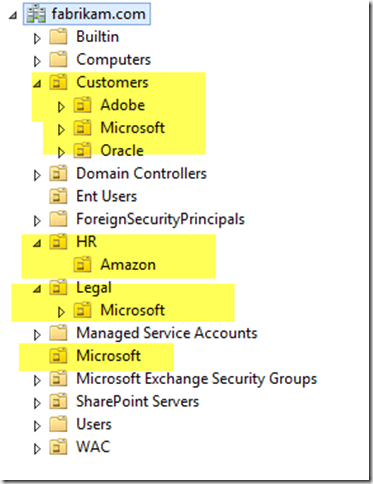
When we perform a sync, all of the objects within ALL of the Microsoft OUs will be imported to the Microsoft partition of the UPA! Yes, really! And the Amazon OU, even thou it’s not in the customers OU will also be imported. If we had two Amazon OUs, they would both be imported.
The only thing that governs whether a container is parsed is the configuration using Add-SPSiteSubscriptionProfileConfig. If this name matches, wherever it is in the domain, it will be synced. Remember we CANNOT use a DN for this value, it must be a string.
The addition of a DN using Add-SPProfileSyncConnection of one container whose name happens to be the same as that within the SiteSubscriptionProfileConfig is merely the trigger to make ADI aware of it. It doesn’t actually matter where it is as long as one or more CN=Foo matches up to a Foo in the SiteSubscriptionProfileConfig.
This is extremely important.
It means we actually have much more flexibility in our domain structure – something which many hosters asked for – although this is not why it’s like this :).
However, it also means it can get quite confusing and very dangerous. It means that using customer names for OUs might not be the smartest move – you really need to think through which structure best fits your needs, and be totally aware of the implications should you have many OUs with the same name as part of the solution. You must be really on top of planning and governing the AD used for your profile import in hosting scenarios.
None of this is of course how it should be. But it is how it is. And hopefully the explanation above helps those of you whom are looking to implement hosting scenarios with SharePoint 2016.
Ahh, the joys of user profile sync. Peace and B wild. May U live 2 see the dawn.
When leveraging Microsoft Identity Manager (MIM) and the SharePoint Connector for User Profile Synchronization, some customers have a requirement to import profile pictures from the thumbnailPhoto attribute in Active Directory.
This post details the correct way of dealing with this scenario, whilst retaining the principle of least privilege. The configuration that follows is appropriate for all of the following deployments:
- SharePoint 2016, MIM 2016, and the MIM 2016 SharePoint Connector
- SharePoint 2013, MIM 2016, and the MIM 2016 SharePoint Connector
- SharePoint 2013, FIM 2010 R2 SP1 and the FIM 2010 R2 SharePoint Connector
* Note: you can also use MIM or FIM 2010 R2 SP1 with SharePoint 2010, although this is not officially supported by the vendor.
Before we get started it is important to understand that if the customer requirement is to be able to import basic profile properties from Active Directory with the addition of profile photos, then MIM/FIM is almost certainly the wrong choice. SharePoint’s Active Directory Import capability alongside some simple PowerShell or a console application will deliver this functionality with significantly less capital and operational cost.
However, many customers are dealing with more complicated identity synchronization requirements and thumbnailPhoto is merely one of the elements required. Due to some bizarre behaviour of SharePoint’s ProfileImportExportService web service, previous vendor guidance on this capability has been inaccurate, and indeed yours truly has provided dubious advice on this topic in the past.
Most enterprise identity synchronization deployments have stringent requirements regarding the access levels granted to the variety of accounts used. This is just as it should be, there is no credible identity subsystem which allows more privilege than necessary to get the job done. Naturally a system which is providing a “hub” of identity data should be as secure as possible. Because of this security posture, many customers have complained about the level of access “required” by the account used within the SharePoint Connector (Management Agent). In some cases, customers, have refused to deploy or used alternative means to deal with thumbnailPhoto . It’s not a little deal at all for those customers.
What is the issue?
Assume that MIM Synchronization is configured using an Active Directory MA, and a SharePoint MA with the Export option for Picture Flow Direction*. The account used by the SharePoint MA is added to the SharePoint Farm Administrators group as required. We then perform an initial full synchronization. MIM Synchronization successfully exports 217 profiles to the UPA.
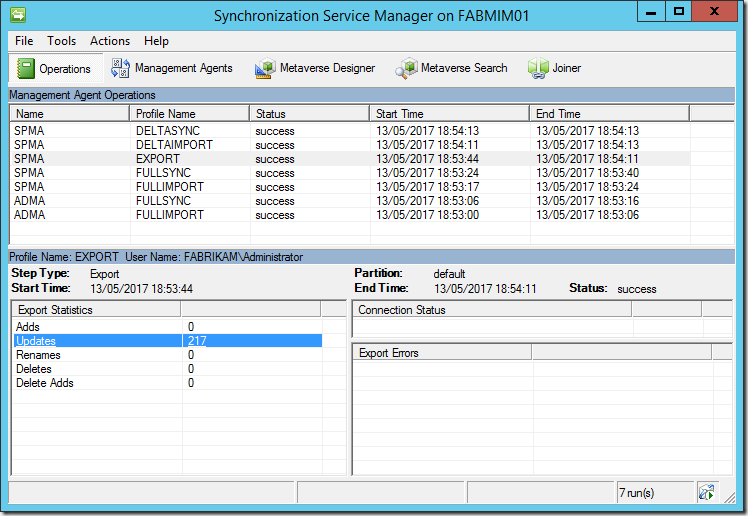
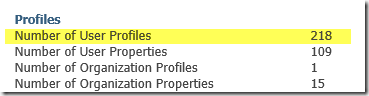
*Note: 218 is the Farm Administrator plus the 217 new profiles.
The Import option for Picture Flow Direction, whilst available in the UI and PowerShell, is not implemented and therefore won’t do anything.
We will however notice some rather puzzling results for the profile pictures. The Profile Pictures folder is correctly created within the My Site Host Site Collection’s User Photos Library. However only some of the profile pictures will be created, in this example 112 of them. What happened to the other 105?
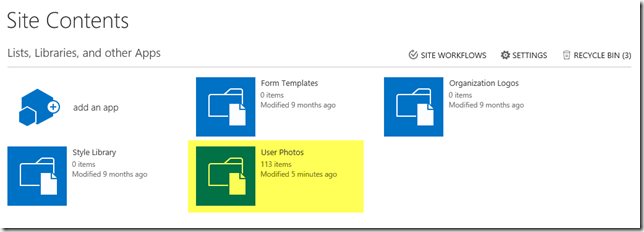
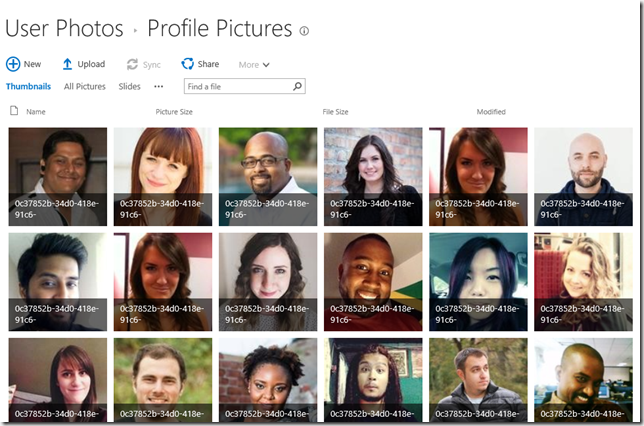
The numbers will actually vary, I can run this test scenario hundreds of times (and believe me, I have!) and get different numbers each time. However, roughly half the pictures are created each time.
This is the problem which has led to incorrect guidance. It really is quite a puzzler. Obviously, some files are created, and thus logic suggests that the account which is calling the web service has the appropriate permissions. If the permissions were wrong, surely no files would be created. Alas, this is SharePoint after all, and sometimes it really isn’t worth the cycles! Bottom line there is an issue with the web service. That’s not something which can easily be resolved.
The documentation for the FIM 2010 R2 SP1 SharePoint Connector, which is the previous version of the currently shipping release, remains the best documentation available, it notes:
When you configure the management agent for SharePoint 2013, you need to specify an account that is used by the management agent to connect to the SharePoint 2013 central administration web site. The account must have administrative rights on SharePoint 2013 and on the computer where SharePoint 2013 is installed.
If the account doesn’t have full access to SharePoint 2013 and the local folders on the SharePoint computer, you might run into issues during, for example, an attempt to export the picture attribute.
If possible, you should use the account that was used to install SharePoint 2013.
This, to a SharePoint practitioner, is clearly poor guidance. Whilst it’s true the MA account must connect to Central Administration, that means it must be a Farm Administrator. There is no requirement for the account to have other administrative rights on the SharePoint Farm, and there is no requirement for any machine rights on any machine in the SharePoint Farm except for WSS_ADMIN_WPG, which is granted when adding a Farm Administrator. And certainly no access to the local file system of a SharePoint server is needed. Furthermore, there is no scenario whereby the SharePoint Install account should ever be used for runtime operations of any component, anywhere, in any farm! Of course, this is material authored by the FIM folks, and there is no reason to expect them to be entirely familiar with the identity configuration of SharePoint, especially given that the topic is confusing to most SharePoint folks as well!
When I delivered the “announce” of the MIM MA at Microsoft Ignite last fall, I made a point of this issue, by stating that the Farm Account should be used by the SharePoint MA if importing from thumbnailPhoto . This is also incorrect guidance. In my defence, at the time we had worked a couple weeks to try and get to the bottom of the issue, and ran out of time before the session. Thus, to show it all working there was little choice. It’s pretty silly to do a reveal of something if the demo doesn't work.
Using the Farm Account for anything, other than the Farm is a bad idea. In this case, it’s extremely dubious, as in a real-world deployment the account’s password will need to be known by the MIM administrator. Internal security compliance of any large corporation is simply not going to accept that.
Others have suggested that the SP MA account is added to the Full Control Web Application User Policy for the My Site Host web application. Or rather that the GrantAccessToProcessIdentity() method of the web application is used, which results in the above policy. That guidance is also inherently very bad. A large number of deployments now make use of a single Web Application, and providing Full Control to the MA account to that is patently a bad idea. Furthermore, such configuration allows unfettered access to the underlying content databases (which store the user’s My Sites remember!) and provides Site Collection Administrator and Site Collection Auditor rights on the My Site host.
The Workaround
So, we don’t want to use the Install Account, we don’t want to use the Farm Account, and we don’t wish to configure an unrestricted policy.
The answer to this conundrum is to configure a brand-new Permission Policy to which we will add a User Policy for the SharePoint MA account. This enables all the pictures to be created, without granting any more permissions than necessary.
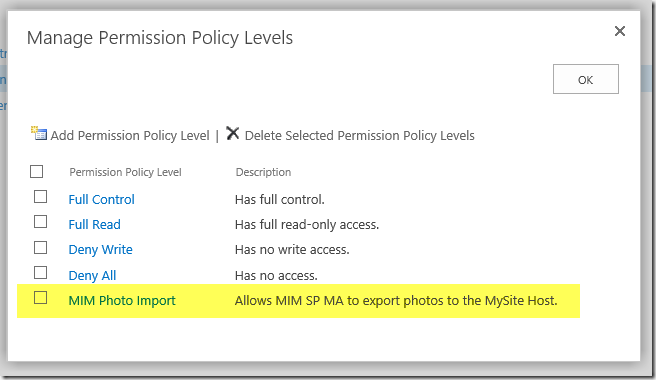
The Grant Permissions for this policy are: Add Items, Edit Items, Delete Items, View Items and Open Site. No more, no less.
Then we add a new User Policy for the Web Application hosting the My Site host Site Collection, for the SharePoint MA account, with this Policy Level:
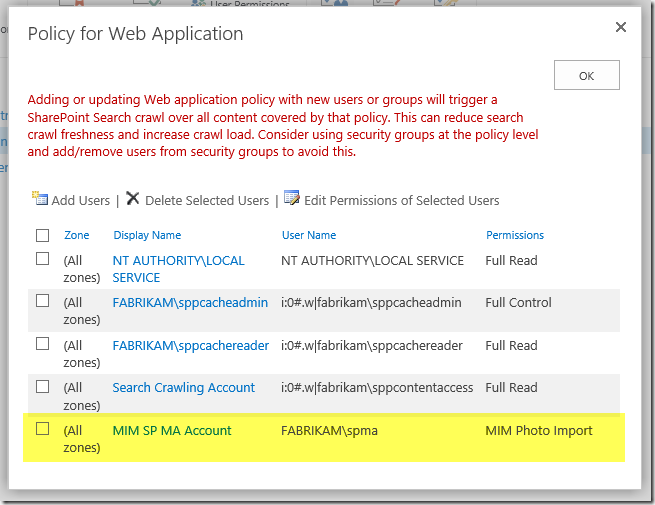
Now at this point if we perform another Full Synchronization we have a problem. As far as MIM Synchronization is concerned the previous export worked flawlessly. It thinks all the pictures are present. This is because the ProfileImportExportService didn’t report any exceptions. The failures have been lost to the great correlation ID database in the sky. Gone forever. If we search the SharePoint MA’s Connector Space within MIM, we will see the photo data present and correct. There are zero updates to make.
Of course, the idea is to correctly configure all of this before we perform the initial Full Synchronization. However, if you are following along, we can “fix” this by deleting the SharePoint MA’s Connector Space, and then performing a Full Synchronization. This will force an fresh Export to SharePoint (there is no need to delete the AD Connector Space).
Once the Full Synchronization has completed, we will see the correct number of items within the User Photos Library (one item is the Profile Pictures folder, the other 217 are images).
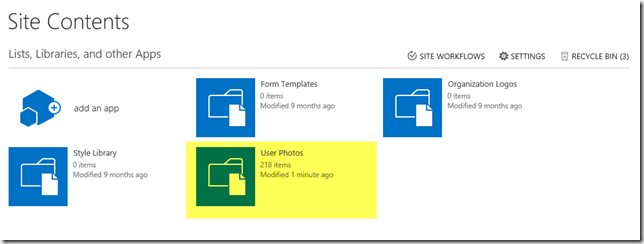
Of course, we would also need to run Update-SPProfilePhotoStore at this point to generate the three images for each profile, and delete the initial data (the files with GUIDs for filenames).
But wait, there is more!
As you may be aware the UPA does not fully understand Claims identifiers for internal access control. This is why we must enter Windows Classic style identifiers for UPA permissions and administrators.
Whilst we can create the new Permission Policy with Central Administration, we cannot create a new User Policy using a Windows Classic identifier. Whatever we enter in the UI will be transformed to a claims identifier. For this to work the policy must be as shown in the screenshot above (FABRIKAM\spma) – using a Classic identifier. And yes, I do feel stupid calling a NetBIOS username, “classic” but I am not in charge of naming anything :)
In order to configure the policy correctly for this use case we must use PowerShell. Which is actually just fine, because we don’t really want to be using the UI anyway. We can also combine all this work into a simple little script to create both the Permission Policy and the User Policy, as shown below.
Add-PSSnapin -Name "Microsoft.SharePoint.Powershell"

# update these vars to suit your environment
$WebAppUrl = "https://onedrive.fabrikam.com"
$PolicyRoleName = "MIM Photo Import"
$PolicyRoleDescription = "Allows MIM SP MA to export photos to the MySite Host."
$GrantRightsMask = "ViewListItems, AddListItems, EditListItems, DeleteListItems, Open"
$SpMaAccount = "FABRIKAM\spma"
$SpMaAccountDescription = "MIM SP MA Account"


# do the work
$WebApp = Get-SPWebApplication -Identity $WebAppUrl
# Create new Permission Policy Level
$policyRole = $WebApp.PolicyRoles.Add($PolicyRoleName, $PolicyRoleDescription)
$policyRole.GrantRightsMask = $GrantRightsMask
# Create new User Policy with the specified account
$policy = $WebApp.Policies.Add($SpMaAccount, $SpMaAccountDescription)
# Configure the Permission Policy to the User Policy
$policy.PolicyRoleBindings.Add($policyRole)
# Commit
$WebApp.Update()
Summary
There you have it. How to use a least privilege account for the SharePoint MA, and successfully import thumbnailPhoto from Active Directory. In summary, the required steps are:
- Create an account in Active Directory for use by the SharePoint MA (e.g. FABRIKAM\spma)
- Add the account as a SharePoint Farm Administrator using Central Administration or PowerShell
- Create the Permission Policy and User Policy for the account using the PowerShell above
- Configure the SharePoint MA with this account, and select Export as the Picture Flow Direction. If you are using the MIMSync toolkit the thumbnailPhoto attribute flow is already taken care of. If you are not, obviously you will need to configure the necessary attribute flow
- Perform Synchronization operations
- Execute Update-SPProfilePhotoStore once Synchronization is complete to create the thumbnail images used by SharePoint
Now of course, we have added the SP MA account as a Farm Administrator. As such it could be used to do just about anything to the farm. Least privilege is always a compromise and in this case the farm administrator is a requirement of the ProfileImportExportService – a SharePoint product limitation. Therefore, this approach is the best compromise available, and one that has already been accepted by security compliance in three enterprise customers using MIM and the SharePoint Connector. The bottom line is that if you don’t trust your MIM administrators, or indeed your SharePoint ones, you’ve got bigger security problems than a couple of accounts!
Also, none of this explains why without the policy configuration or overly aggressive permissions, the web service creates some pictures but not others. But life is just too short to worry about that rabbit hole!
Finally, it is always good to remember the mantra of the SharePoint Advanced Certification programs, “just because you can, doesn’t mean you should”. This post is not intended to promote the use of MIM for just the profile photo. Furthermore, using thumbnailPhoto in AD for photos is just one approach of many. For some organisations, especially the larger ones, this would be a spectacularly stupid implementation choice, and of course in many others Active Directory is not the master source of identity anyway.
s.